How QQL Studio works
A quick tour of every section in the app's sidebar, top to bottom. Set whatever you care about, leave the rest alone, and hit Generate. Every filter also has an ⓘ button in the app with more detail.
Fast vs. "needs layout". Traits are written straight into each seed, so they cost nothing. Filters tagged fast (Flow, the structure cards, background and splatter) are checked before any dots are placed, so they're nearly free too. Filters tagged needs layout (points, colors, radius buckets, corner concentration and ring colors) can only be checked by fully building each candidate, so the stricter you make them, the longer a search takes.
Your filters are remembered between sessions. Reset all filters, just above the Flow section, clears them in one click (your traits have their own reset).
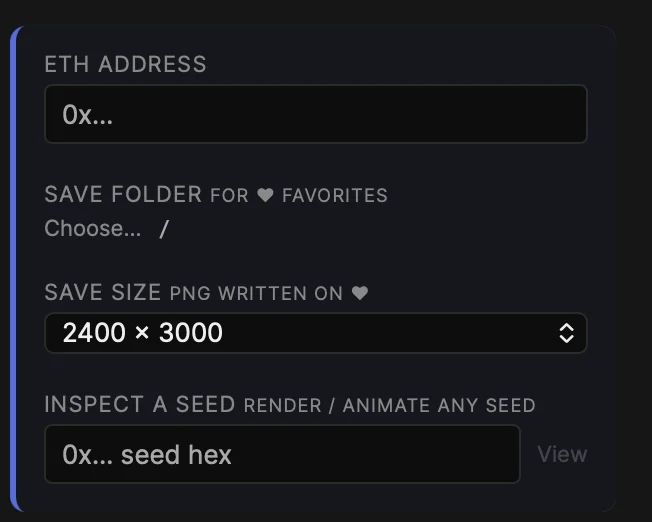
Setup
Everything the app needs before it can generate.
- ETH address — every seed QQL Studio creates begins with this address, which is what ties a seed to its owner on qql.art.
- Save folder — where favorites go. Tap ♥ on any seed and a PNG named after its seed is written here. Hearts are restored from this folder each time the app opens.
- Save size — the resolution favorites are saved at: 800 × 1000, 2400 × 3000, or 4800 × 6000.
- Inspect a seed — paste any seed, or a qql.art link to one, to render it, read its stats, animate it, or export it.
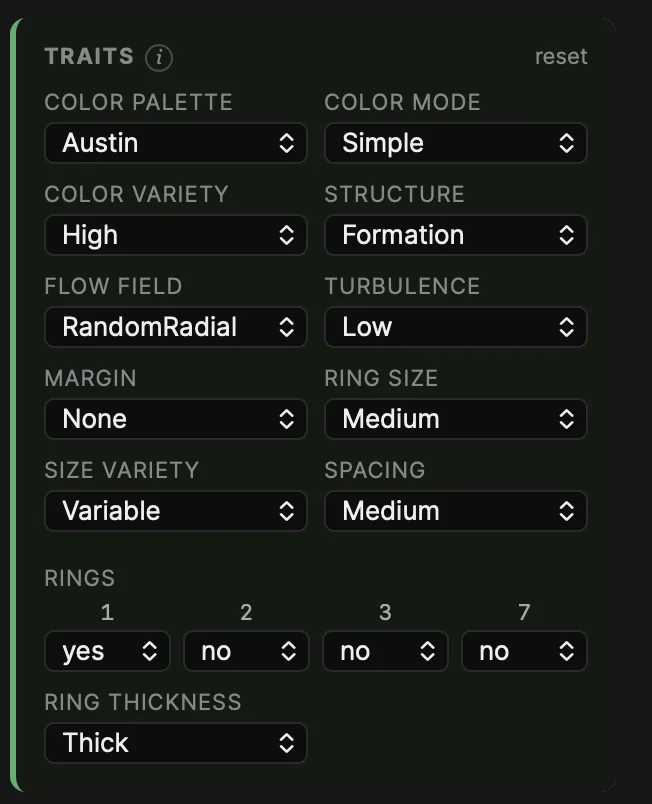
Traits
The same traits you choose on qql.art: palette, color mode, color variety, structure, flow field, turbulence, margin, ring size, size variety, spacing, rings and ring thickness.
Anything you set here is guaranteed: the app writes your choices directly into every seed it makes. Anything left on Any is picked at random with qql.art's own odds, which is where the surprises come from. reset puts everything back to Any.
Rings: "2" only happens when 1, 3 and 7 are all off, so the app won't let you combine them. Left on Any, they won't all come up off by chance (just like on qql.art), so choose them yourself if you want 2-ring pieces.
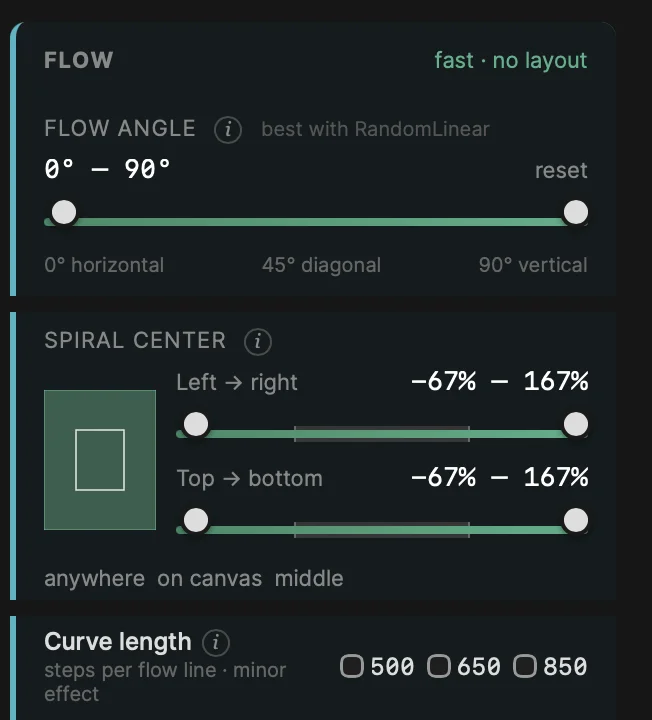
Flow
How the lines run. Everything here is fast.
- Flow angle — the direction the lines run, from 0° horizontal to 90° vertical. Most useful with the RandomLinear flow field, which can land on any angle. Curved flows have no single angle, so the slider switches off for them.
- Spiral center — where a curved flow (Explosive, Spiral, Circular or Random Radial) curls around. The two sliders set where that point may sit, left to right and top to bottom, as a percentage of the canvas: 0% is the left or top edge, 100% the right or bottom. They run from −67% to 167% because the center is often off the canvas, so many pieces show only the outer sweep of a swirl. The little map shows the canvas as the inner rectangle and your range in green. Presets: anywhere, on canvas (you'll see the eye of the spiral) and middle (a centered swirl).
- Curve length — how far each dot-trail drifts: 500, 650 or 850 steps. A subtle effect, mostly visible on sparse pieces.
Most spiral centers land on a third or a half of the canvas; about one in six lands at a random spot. Straight flows have no center, so Spiral center switches off when you pick one, and with Flow field on Any, setting it leaves straight-flow seeds out.
Hunting recursions? Set Flow field to RandomLinear and narrow the angle to 43–47°. Add Formation Horizontal and Vertical at max 1 for single-section pieces. Recursions turn up outside that band too, but they're far more common inside it.
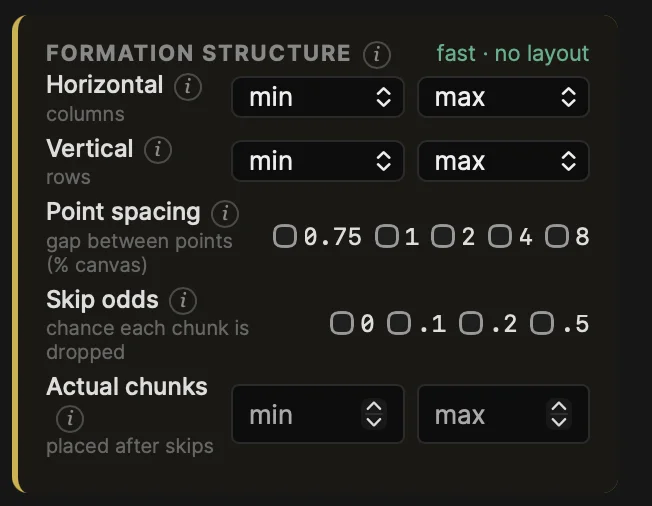
Formation structure
Formation pieces are a grid of rectangular chunks, each filled with its own lattice of dots.
- Horizontal is the number of columns and Vertical the number of rows: 1, 2, 3, 4, 5 or 7 (never 6). A 1 × 1 piece is one seamless field.
- Point spacing — how tightly the dots in each chunk are packed.
- Skip odds — the chance each chunk is dropped, leaving gaps. Actual chunks is how many really made it.
The structure cards only match their own structure, so they grey out when you pick a different Structure under Traits. All three are fast.
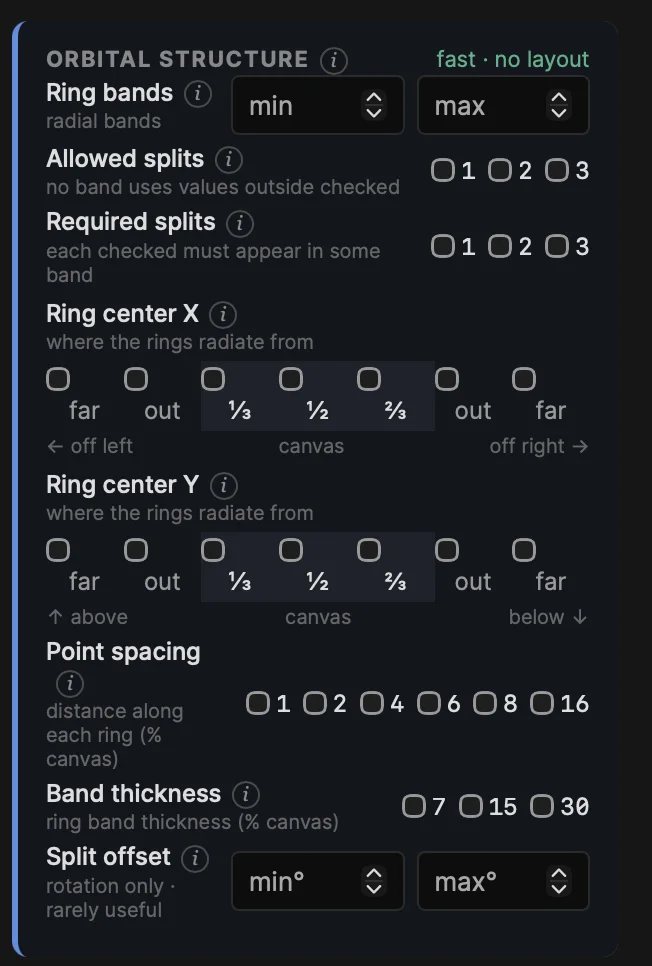
Orbital structure
Orbital pieces are concentric bands radiating from a center point.
- Ring bands — how many bands there are. Thin bands with an off-canvas center give many; thick bands with a centered one give few.
- Allowed / Required splits — each band is a full ring, or split into halves or thirds. Allowed sets which splits may appear; Required sets which must.
- Ring center X / Y — where the rings radiate from, as seven boxes in canvas order: far, out, ⅓, ½, ⅔, out, far. Each side is its own box, so you can pick exactly where the rings come from — for example "out →" on X with "out ↓" on Y sweeps them in from the bottom-right corner.
- Point spacing, band thickness and split offset fine-tune the dot spacing, the width of each band, and where the splits sit.
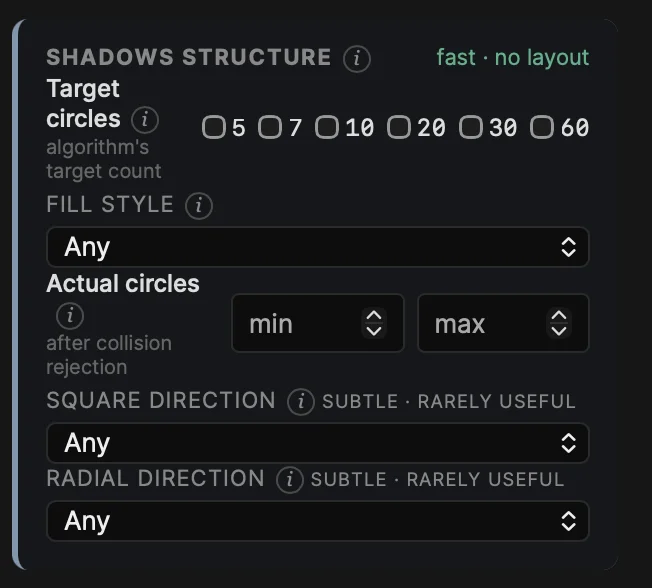
Shadows structure
Shadows pieces are scattered circles that never overlap, each filled with concentric rings or a square grid of dots.
- Target circles is how many the algorithm tries to place; Actual circles is how many fit. Big targets rarely all fit, so Actual is usually the one to filter on.
- Fill style — all rings, all grids, or a mix.
- Square and radial direction change the order the dots are drawn in. Subtle.
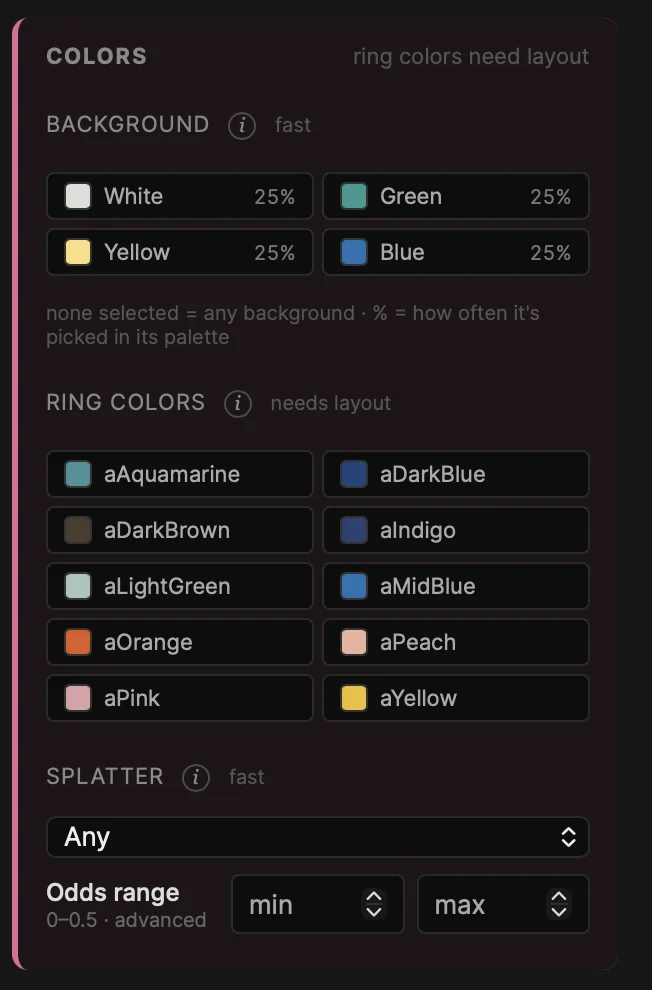
Colors
- Background (fast) — click one or more background swatches to accept any of them. The % beside each is how often it's picked in its palette. None selected means any background.
- Ring colors (needs layout) — click colors to require them in the piece. Turn on "Only these colors" to also rule out every color you didn't pick. If you've set a palette under Traits, only that palette's colors are listed.
- Splatter (fast) — the small satellite dots some pieces throw off. Choose none, any, light, moderate or heavy, or set an exact odds range.
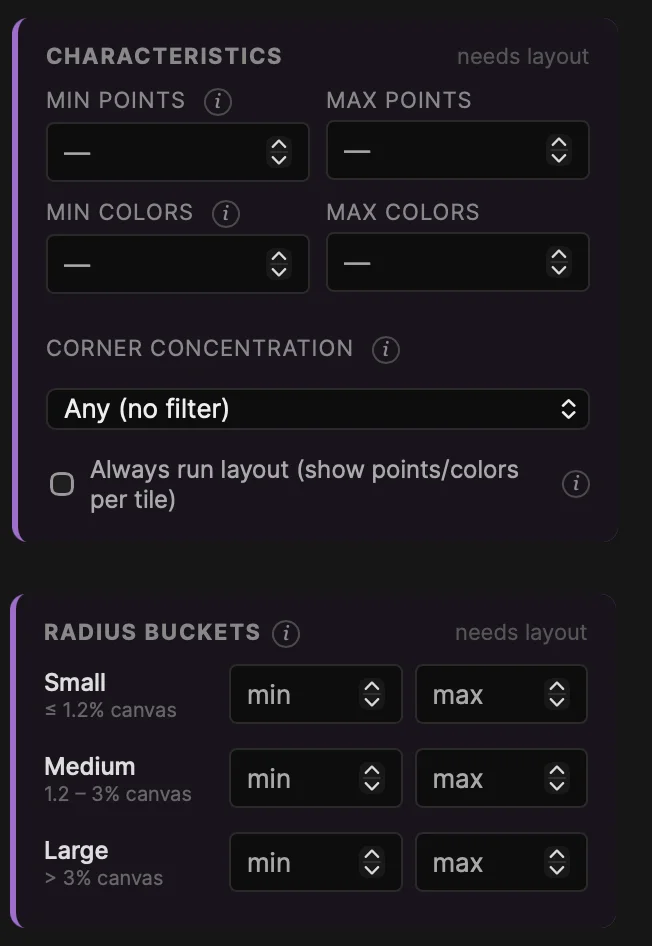
Characteristics & radius buckets
These need a full layout of every candidate, so they're the slowest filters. Pair them with fast ones to keep searches quick.
Points and colors set a minimum and maximum for how many dots a piece has and how many different colors it uses. Max points is the cheaper side: a seed is dropped the moment it goes over.
Corner concentration — which quarter of the canvas is densest, and by how much compared with the sparsest one.
Radius buckets count dots by size: small up to 1.2% of the canvas width, medium 1.2–3%, and large above 3%. Use them to find pieces built mostly from fine dust, or dominated by big rings — Large: min 1 asks for at least one hero bullseye.
"Always run layout" shows the point and color count on every result, even when you haven't set these filters.
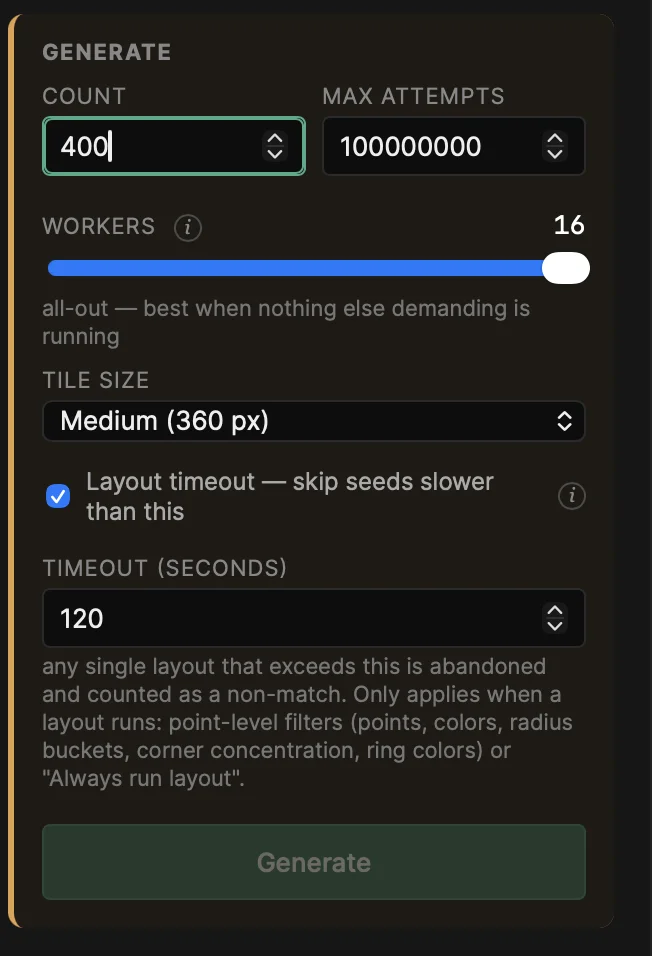
Generate
- Count — how many matching seeds you want, up to 2,048.
- Max attempts — how many candidates to try before giving up. Leave it empty and it's set automatically.
- Workers — how much of your computer to use, for searching and for drawing thumbnails. More is faster; fewer leaves room for other apps.
- Tile size — how large the results are drawn in the grid.
- Layout timeout — skip any candidate that takes too long to build, so a few extremely dense seeds can't stall a search. Only applies to the needs-layout filters.
Results appear in the grid as they're found, with the hit rate ("1 in 37") and a time estimate. You can cancel at any time and keep what it found. If nothing matches, you'll see why and what to loosen.
Over the results: sort by points or colors, show ♥ only, click a tile's seed to copy it, or ↗ to open it on qql.art.
Inspecting a seed
Click any result, or use Inspect a seed, to open it full size. Use the ‹ › buttons or arrow keys to step through results, and Escape to close.
- Save As… exports a PNG anywhere, at the Export width you choose (up to 9600 px).
- ♥ saves it straight to your favorites folder.
- copy and qql.art ↗ copy the seed or open its page.
- Inflate reveals ultra-dense pieces whose dots are too fine to show. Some seeds look almost blank until you turn it on.
- Animate draws the piece in front of you, and exports it as an animated PNG or a frame sequence.
- Traits and layout stats — everything about the piece at a glance, labelled to match the filters.